

Set up before you share
Choose your questions
Turn on what you need: allow 'maybe', phone number, meal choices, dietary needs, and a note for the hosts. Add custom questions (text, dropdown, checkboxes, number) for anything else.
Set limits
Set how many people each reply can include and, if your venue has a limit, a total capacity with a waitlist.
Set a reply-by date
It shows on the invitation. You can choose whether replies close after it.
Reading the dashboard
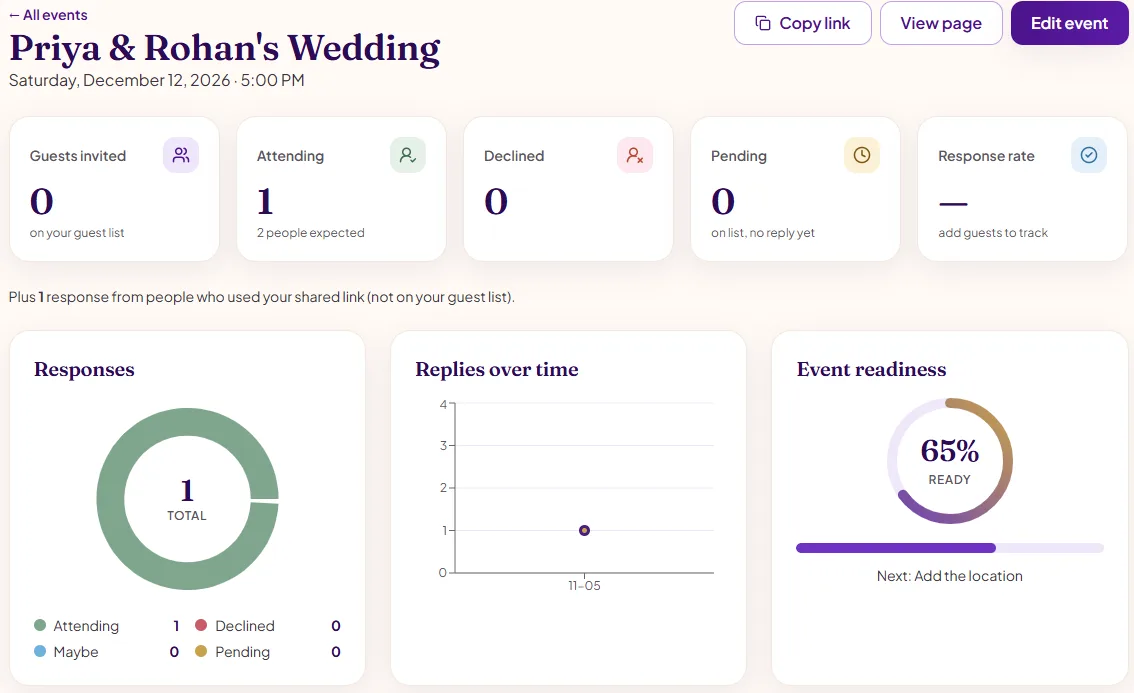
| Count | Meaning |
|---|---|
| Guests invited | People on your guest list |
| Attending | Replies saying yes, and how many people are expected |
| Declined | Replies saying they can't come |
| Pending | People on your list who haven't replied yet |
| Response rate | Share of your guest list that has replied |
Replies from people who used your shared link (rather than an email invitation from your list) are counted too, and shown separately.
Using the replies
Send reminders
Email a reminder now or schedule one (a week before, a day before, the morning of) to guests who haven't replied, or to everyone coming.
Export the list
Download the guest list and answers as a spreadsheet file (CSV) for the caterer or venue.
Invite again next time
Past guests appear in 'My Friends', so you can invite them to your next event in one click.
Common mistakes
| Mistake | Better |
|---|---|
| Collecting answers by text | Ask in the RSVP so they're in one list |
| No people-per-reply limit | Set it to match who's invited |
| Waiting until the day before to chase | Schedule a reminder a week before the deadline |
Summary
Questions people ask
Can I add guests who reply by phone?
They can open the link and reply themselves, or you can fill in the form with their answer.
Who can see the guest list?
Only you, the host. Guests see the invitation, not who else is coming.
- Choose questions and limits before sharing.
- Watch counts in the dashboard and remind non-responders.
- Export the list for your vendors. See online RSVP, how to set an RSVP deadline and QR code invitations.
How this guide was made: drafted with AI assistance, then reviewed and edited by the inviteToevents team at Shreeda Events LLC. Product steps describe features that exist on inviteToevents today.
Make your invitation now
Pick a design, add your details and share one link. Creating it and collecting RSVPs is free.
Start with this design